
Extracting Email Address from Outlook Folder & Subfolders
On the popular post Extracting all attachments from Outlook I am asked if there is a way to export email address from Outlook folder but also include subfolder.
Well, Outlook itself doesn’t have this facility – so I wrote my own and its here for you to use. And its FREE.
As per usual: when it comes to these things, I have to add my “I take no responsibility whatsoever if this Macro doesn’t work of messes up your Outlook” I suggest backing it up before you continue further… (gotta say this for legal reasons)
Now that you have backed up your work, please continue:
1. Open Outlook
2. Right-click on this File and save it to your computer where you can find it again. Once it is downloaded, extract the one file in there and place it in the MY DOCUMENTS folder.
3. In the ZIP file you have just downloaded is the Macro file. So now we need to Import it into Outlook.
4. Outlook 2010: You need to enable the DEVELOPER ribbon (if you haven’t already done so). It looks like this:

If you don’t have it enabled, then just do the following:
Click on File, Options, Customize Ribbon and then put a Tick on the Developer on the right-hand side.

Click OK and it will appear.
5. Click on Developer and then click on Visual Basic
6. Click on File, Import File
7. Select the extracted file : GetEmailAddress.bas and click on Open
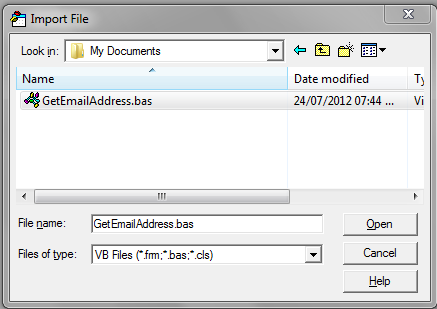
8. Click on File, Close and Return to Outlook
You are now ready to use this !
NOTE: Anytime you want to export all the email address from any folder and its subfolders, you DO NOT have to repeat the above steps – just carry on from here:
Simple click on Developer tab, click on Macros and then Macros again, select the EmailAddress_Subfolder and click on Run !

You will then be prompted to select the folder and once the process is completed you will find a new folder under My Documents named EmailAddressExport and in it you will see a file called: Outputfile.txt which has all the email address

Also in this series of articles, check out:
- You can also check out the How to Extract Folder Name from Outlook 2007
- You can check out the How to Extract all Attachment from Outlook to save onto the computer – not one by one
- One more to check out: How to search for an Outlook folder by name

Excellent tool.
I would then recommend copy and paste addresses into Excel and use the remove duplicate feature.
Jamie
Perfect
awesome mate, saved me a bucket load of time.. Look forward to your future blogs. 🙂 Guy
Nice one, works poifect! Lifesaver!
Liron,
This is amazing and it works, just what I wanted, I want to thank you!
One question, does it drill down all the way to all the subdirectory or just 1 level? My directory structure goes doiwn many levels.
Have a great year/2013.
Peter
Liron,
Does this extract e-mails from the ‘From’, ‘To’, ‘CC’ and ‘BCC’ fields from all e-mails in every subdirectory or just the from the ‘From’ field?
If not, how easy is it to customise.
Cheers, many thanks
Peter.
only the From email address
This post seems to be focused on Outlook 2010 – does the same thing work for Outlook 2007?
Worked lovely and easily with Outlook 2010
Techie Guy, I would love to buy you a cup of tea or coffee, or even something colder or stronger. Thanks for you generosity.
Great App
Great solution! I saved a lot of time thanks to you! Thank you very much!
dear Thank you for such an lovely app!!!!, Could you also help me with removing email address mentioned in the mails? as i get a lot of mails in a bracket form from candidates /clients requesting job and have their emails mentioned in the mail in the main TEXT body?
would be of great help !!!
Thank you VERY much for this nice piece of software!
Hello, great code but for sorry it doesn’t got emails from the message Body or from the CC:
Hi, When I run the code on my PC with Outlook 2010 (in German) I get the runtime error message “Method ‘SenderEmailAddress’ of object ‘_MailItem’ failed”. I have no idea how to get around this error message. Do you have an idea?
OMG! Awesome!!!! I am so grateful for finding this code. Thank you for writing and sharing! Written in 2012 and used with applause in 2018!
I’m getting an error – Outlook 2016 – Compile Error: User-defined type not defined.
Thanks
Hello,
I am also on Outlook 2016 and getting an error: An unexpected error has occurred.
Error #: -1560264699
Outlook cannot perform this action on this type of attachment.
Question: Does this time tested solution work on Outlook 2016?
It is a long thread so is there a place holder for the latest macro that one can easily spot the latest version?
Thanks all.